
This is a user guide for the fully automated trading system GRABBER BOT. Follow these instructions step by step to ensure everything works properly!
STEP 1 – Download the set-files to your PC
Set files are used to automatically configure the GRABBER BOT expert advisor for various assets. Use these set files to configure this trading bot when installing it on a price chart, as well as during backtesting.
Please note that, as the financial market is constantly changing, I update the set files every six months to ensure they reflect all the latest market developments. This ensures that GRABBER BOT remains up to date at all times.
Link to download the set files (Last updated 10 April 2026)
The archive contains two folders with settings files:
1-deal trading – these are set files for configuring the expert advisor to trade no more than 1 trade per 1 asset at a time.
3-deals trading – these are set files for configuring the expert advisor to trade no more than 3 trades per 1 asset at a time.
Step 2 – Open the quote windows for the recommended assets
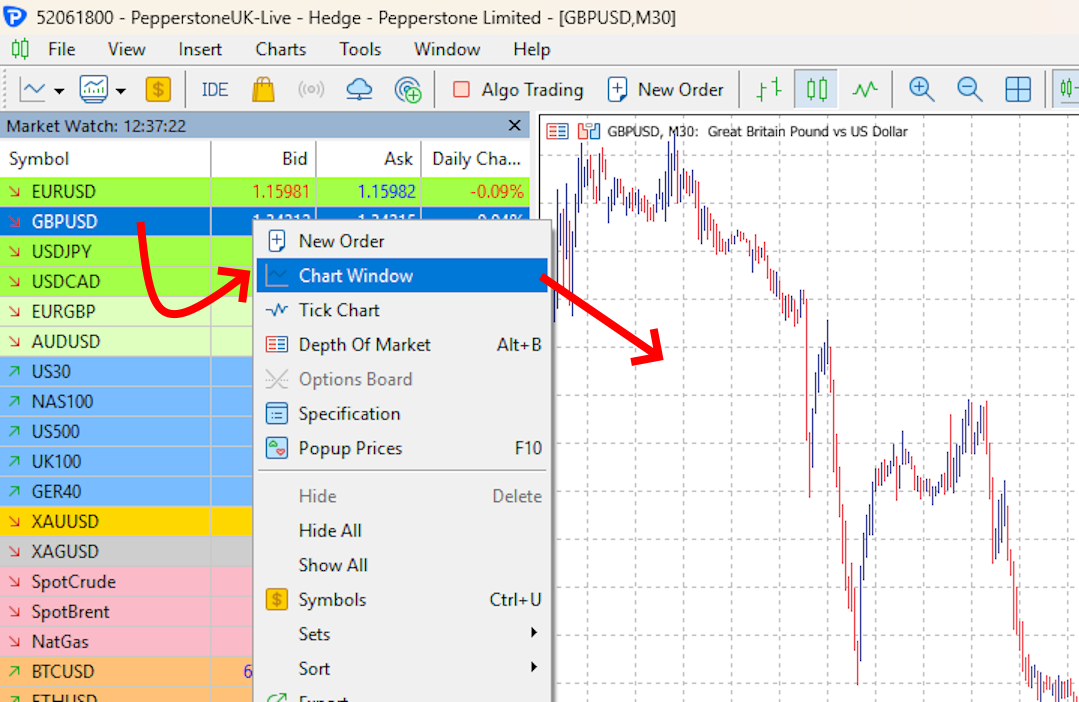
So, I have prepared three sets of GRABBER BOT set-files for users. When you open the folder with the set-files (the link to download the set files is located above on this page), you will see that each set-file has a name that corresponds to the name of the currency pair on which it should be used. So, first of all, open the windows of all currency pairs whose names you see in the folder with the set files. This way, you will prepare all the windows with currency pair quotes on which you will need to install EA GRABBER BOT later.
Step 3 – Set the M15 timeframe for each open quote window
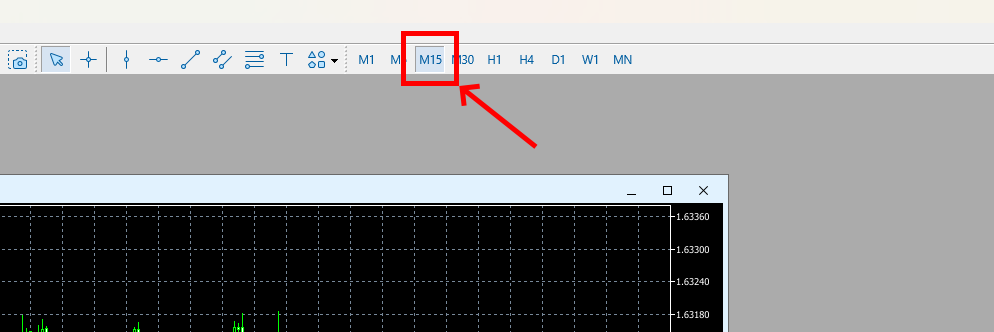
GRABBER BOT operates on the M15 timeframe. Therefore, each quote chart that you open must be set to the M15 timeframe.
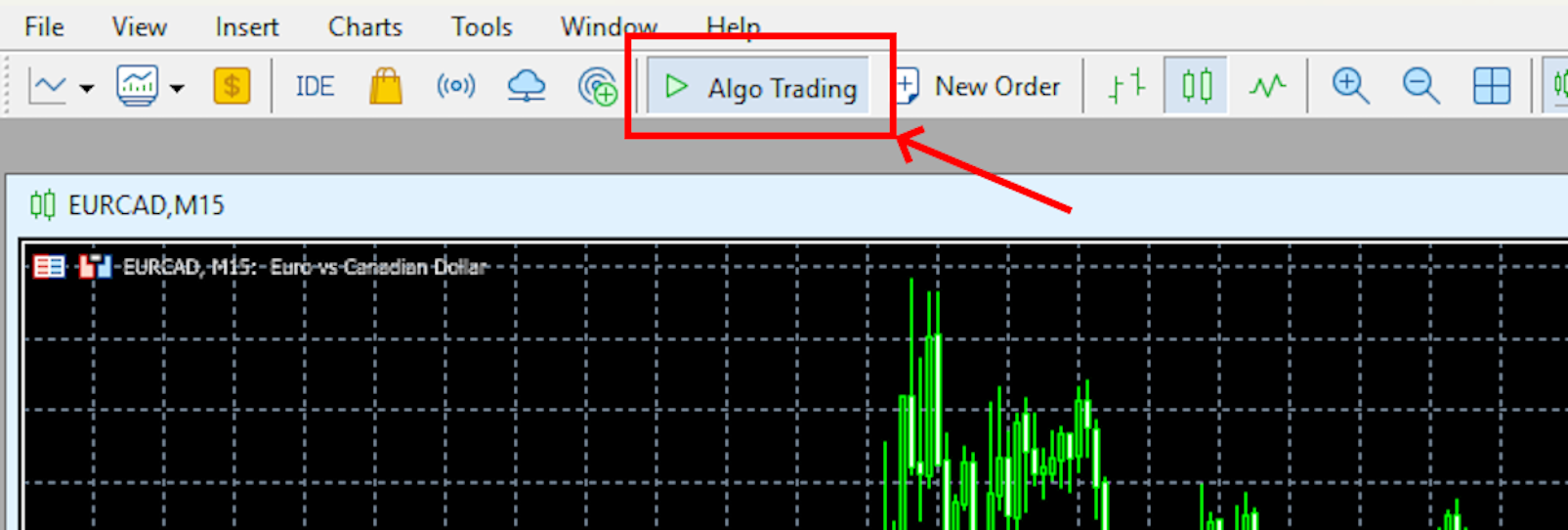
Step 4 – Activate the “Algo Trading” button
Turn on the “Algo Trading” button on your platform to switch the MT5 platform to automatic trading mode.
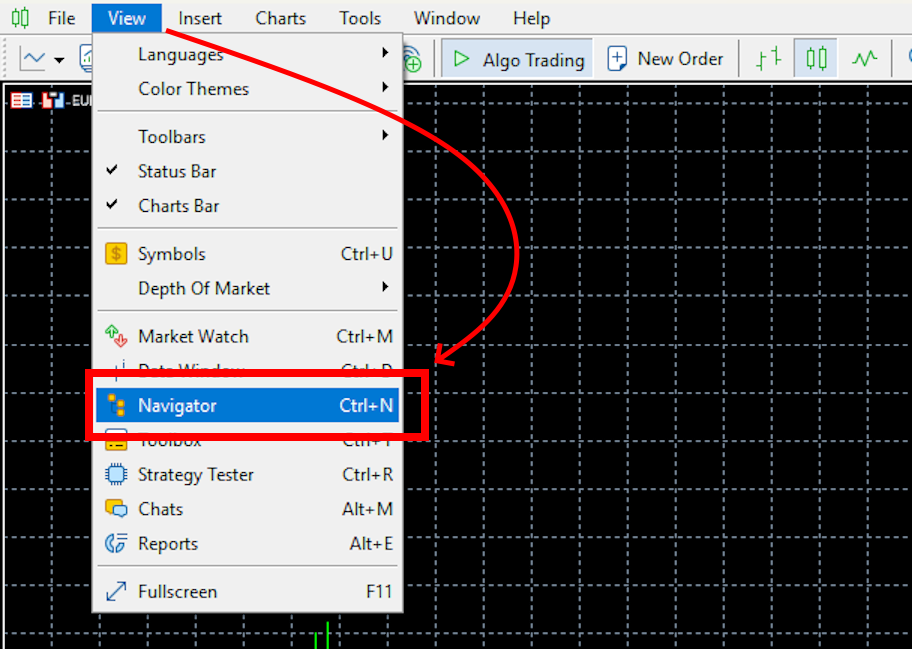
Step – 5 Open the “Navigator” menu
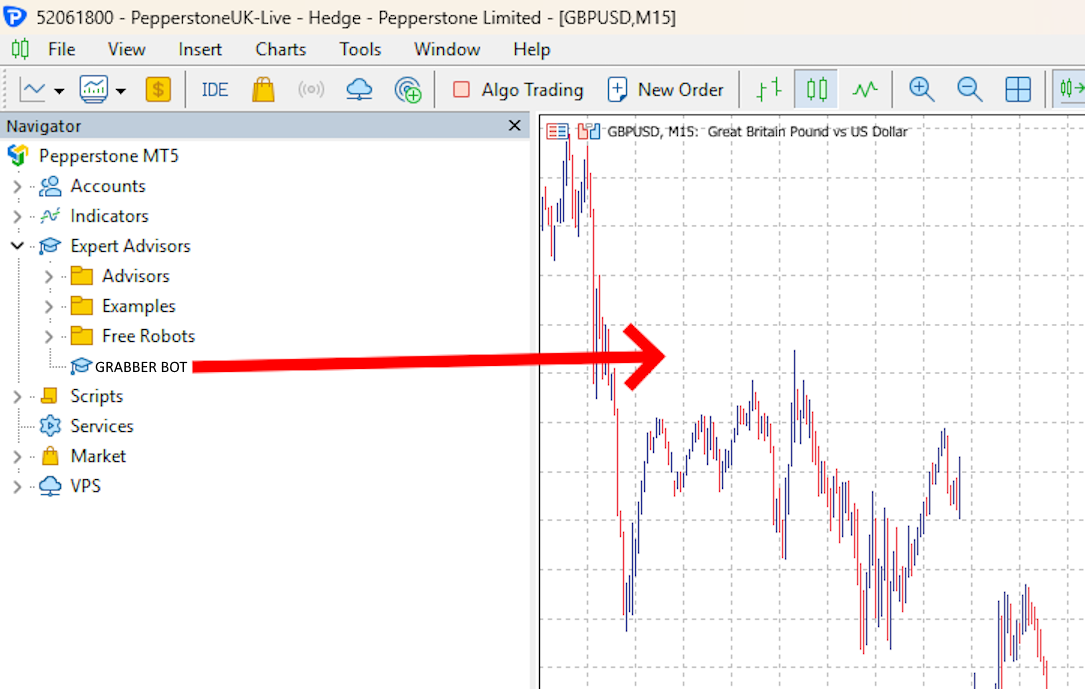
Step 6 – Drag GRABBER BOT onto the quote chart windows
Step 6 – Apply the set file
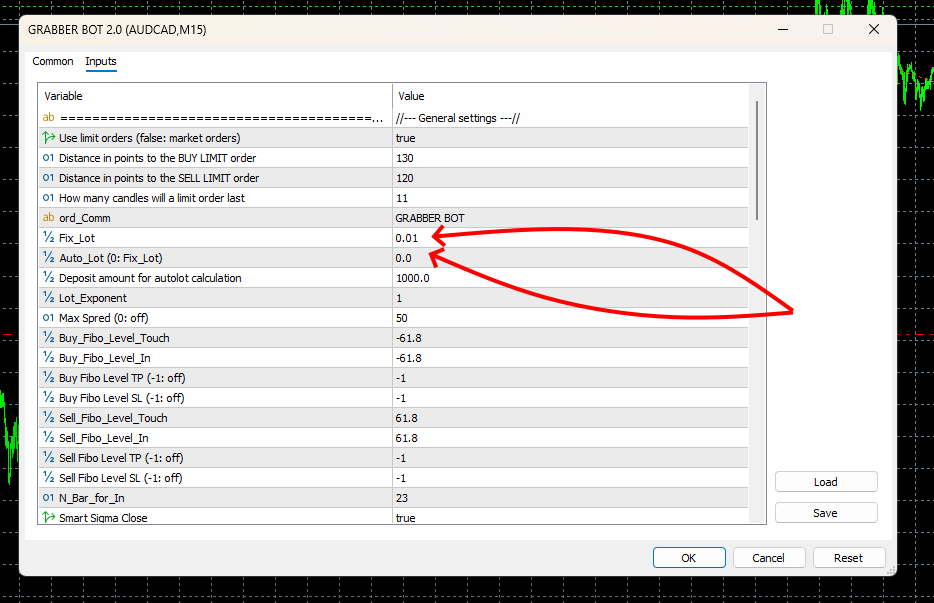
After you drag GRABBER BOT onto the quote chart, its manual settings window will open automatically. You need to click on the “LOAD” button to load the set file for automatic configuration of the trading bot. Using your PC’s internal navigation, find the folder with the set files that you downloaded from the link above and select the appropriate set file. Of course, the name of the set file must match the name of the currency pair on which you are configuring the GRABBER BOT. That is, if you are configuring the advisor on the AUDCAD currency pair, you need to load the set file named AUDCAD:
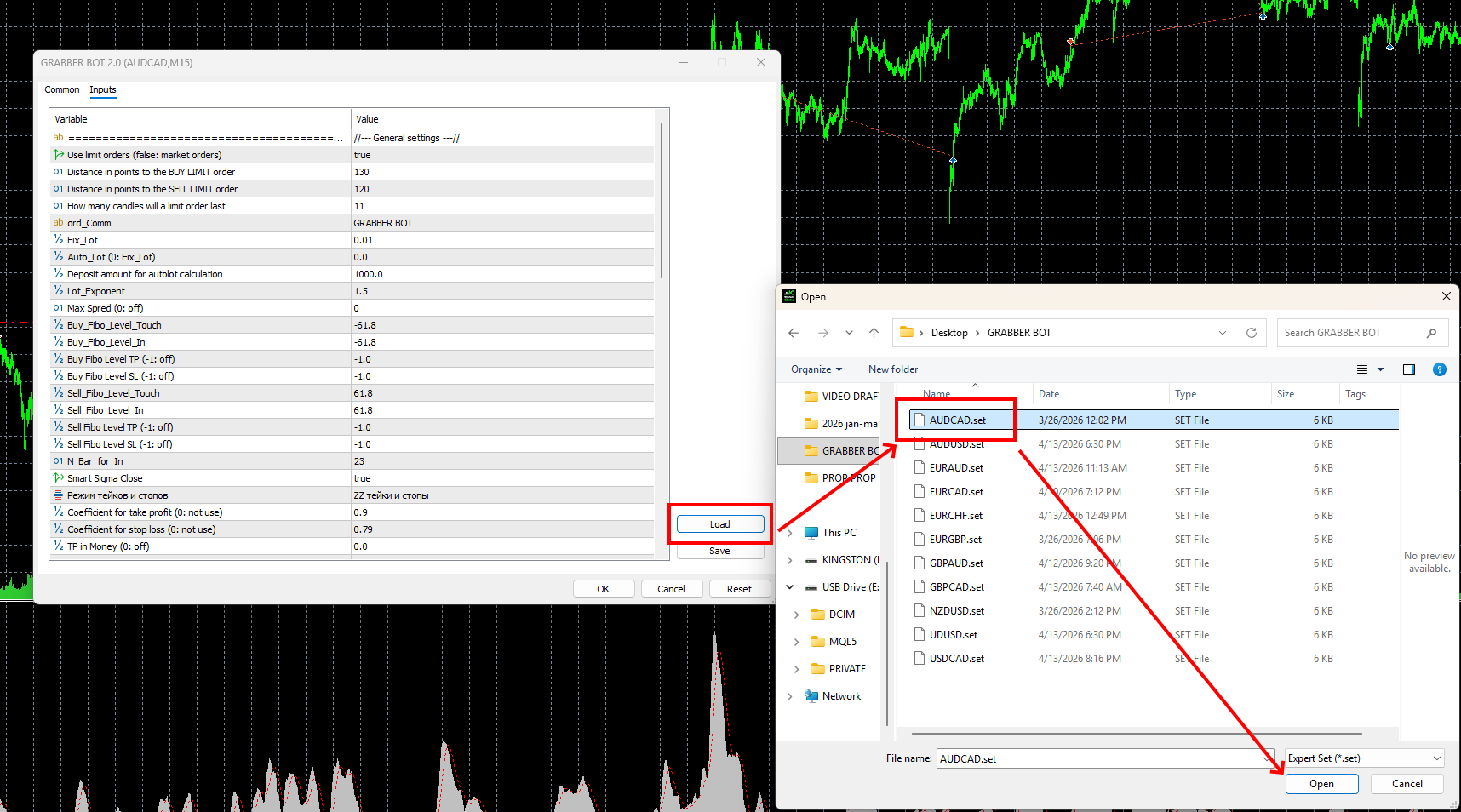
Therefore, install the GRABBER BOT on all previously opened quote windows and use the EA configuration set files for each currency pair window.
Step 8 – set your risk level
By default, the GRABBER BOT uses a medium risk size. The trade lot size is determined automatically depending on the size of your trading capital.
By default, the advisor will use 0.01 trade lots for every $500 of your deposit. That is, if you have $2,000 in your account, the advisor will trade with a lot size of 0.04.
If you want to reduce your trading risk, set the “Deposit amount for autolot calculation” variable to the appropriate value. For example, 1000. This means that the advisor will use a lot size of 0.01 for every $1000 of your deposit. If you have $2000 in your account, the advisor will use a trading lot size of 0.02 for trading.
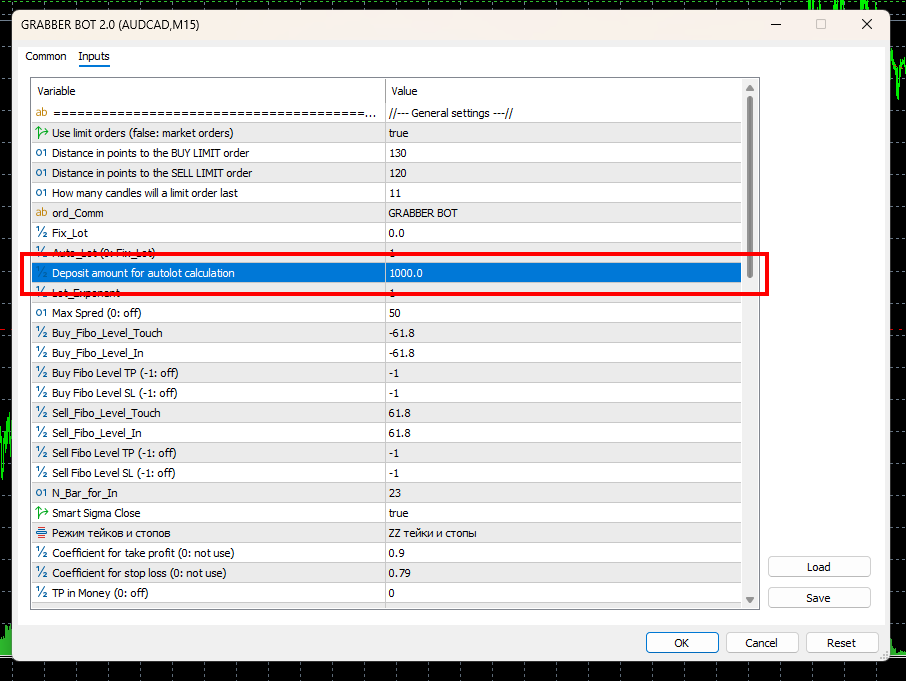
Accordingly, if you want to increase the risk size, set the value of the “Deposit amount for autolot calculation” variable to 250. This means that the advisor will use a lot size of 0.01 for every 250 deposit units. For example, if you have $2,000 in your account, the advisor will use a lot size of 0.08.
How to set a fixed lot size?
To switch GRABBER BOT to fixed lot size trading mode, set the Auto-lot variable to “0” and set the Fix Lot variable to the desired value: